

Sign in with Tailscale (Beta)
Silo is in active development before 1.0. These guides are updated frequently.
People who reach your server over Tailscale can sign in without a password. The sign-in screen shows Continue as with their Tailscale name, and a TV signs in with one press. You can also share the server with family and friends through Tailscale so they sign in the same way.
Before you start, set up the Tailscale plugin and connect the server as described in Reach your server with Tailscale. Tailscale sign-in requires plugin version 0.2.0 or later.
Turn on Tailscale sign-in
Section titled “Turn on Tailscale sign-in”- In the web app, open Admin > Sign-in & Security > Sign-in.
- Under Network sign-in, turn on Sign in with Tailscale. This section appears only while the Tailscale plugin is installed.
- Leave Create accounts on first sign-in on to give new people a Silo account the first time they press Continue as. Turn it off to let in only accounts that are already connected to Tailscale.
Turning this on doesn’t change anyone’s password, and an account connected to Tailscale keeps its password too. New accounts get the User role unless a grant makes the person an admin.
Choose who can sign in
Section titled “Choose who can sign in”Open the Tailscale plugin under Admin > Integrations > Plugins, set Who can sign in, and select Save config.
- Anyone who can reach Silo over Tailscale, the default, lets in everyone whose device reaches the server, including people you share it with.
- Only people granted siloserver.org/cap/silo lets in only people you give a grant in your tailnet policy, as in the next section.
Set roles with grants
Section titled “Set roles with grants”Grants in your tailnet policy can set each person’s Silo role. These steps
use the Tailscale admin console and assume you
tagged the server tag:silo. They make
members of a silo-admins group Silo admins, and everyone else regular
users.
-
Open Access controls > Definitions. On the Groups tab, select Create group. Enter
silo-adminsas the Group name, add the people who should be Silo admins under Members, and select Save group.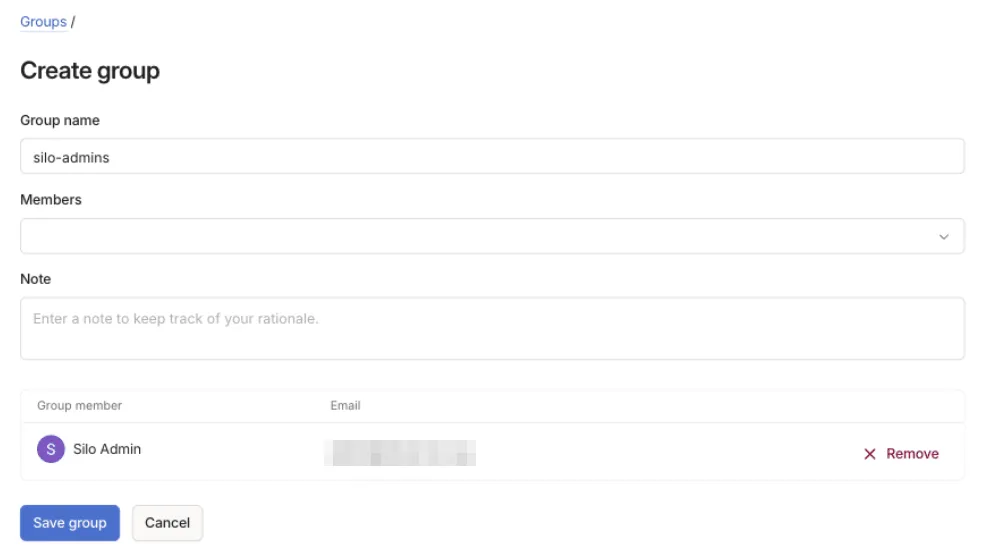
-
Open Access controls > Policies. On the General access rules tab, select Add rule.
-
Set Source to
group:silo-adminsand Destination totag:silo. -
Expand Application-level options. Enter
siloserver.org/cap/siloas the App and{"role": "admin"}as the Capability, then select Save grant.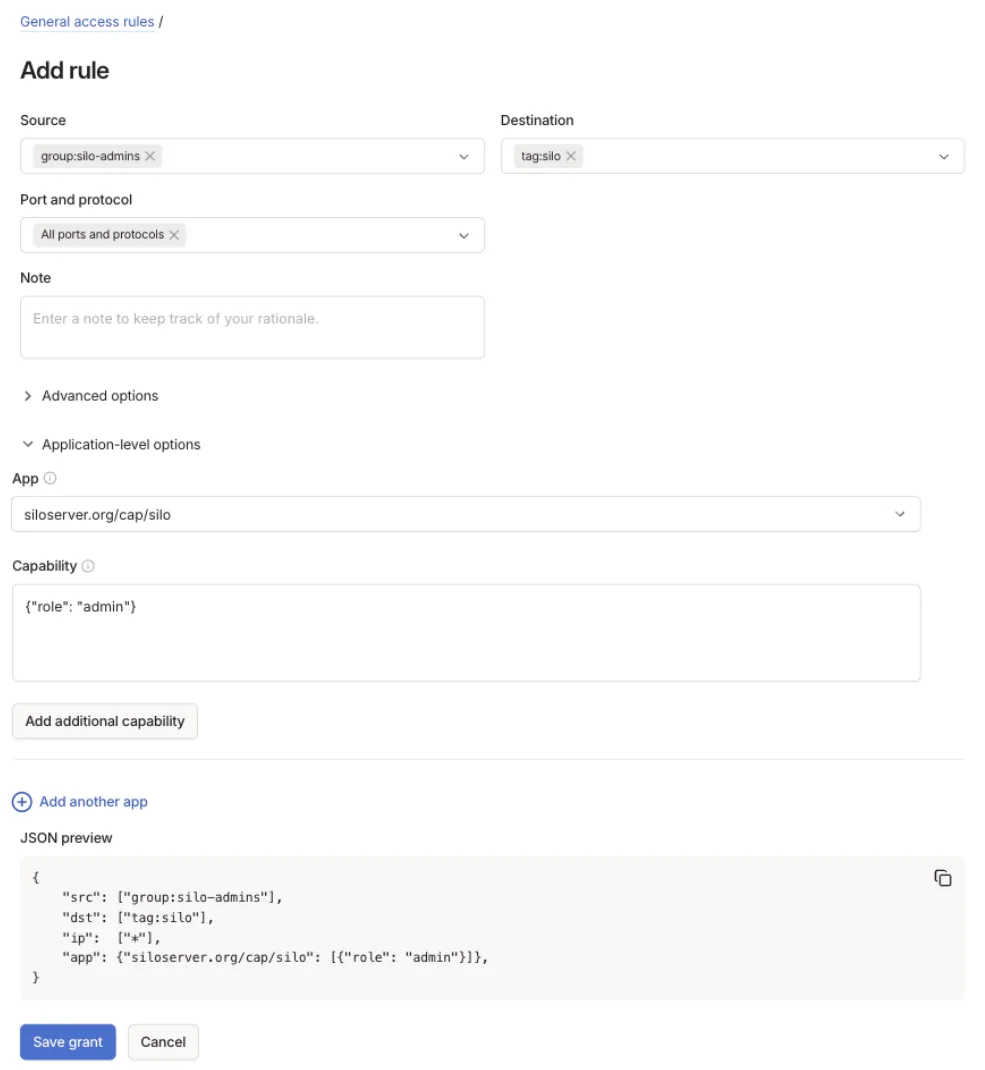
-
Add a second rule the same way, with Source set to
autogroup:memberandautogroup:shared, and{"role": "user"}as the Capability.
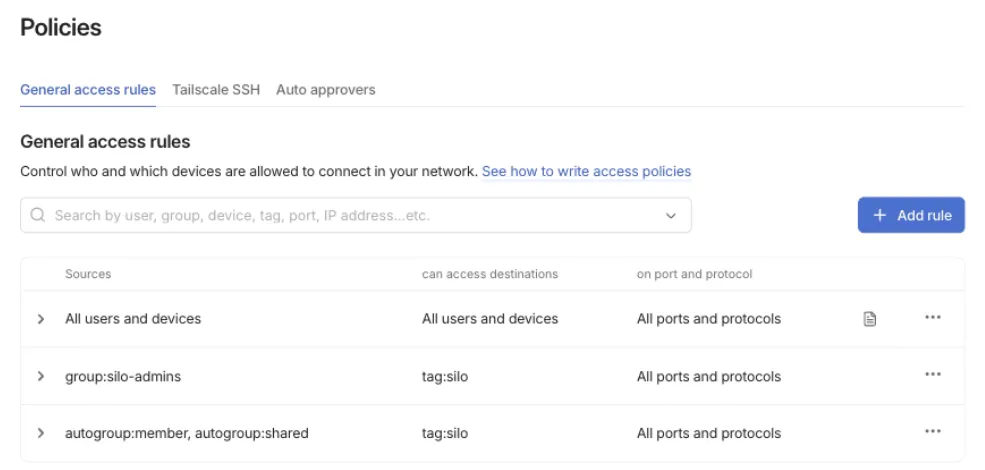
Changes apply at the person’s next sign-in. Removing someone’s admin grant
doesn’t demote them, so give them the {"role": "user"} grant instead.
Anyone who can edit your tailnet policy can make themselves a Silo admin.
Share your server with family and friends
Section titled “Share your server with family and friends”Sharing the Silo machine in Tailscale lets someone outside your tailnet reach your server and nothing else on your network. People already in your tailnet don’t need a share.
What you do
Section titled “What you do”-
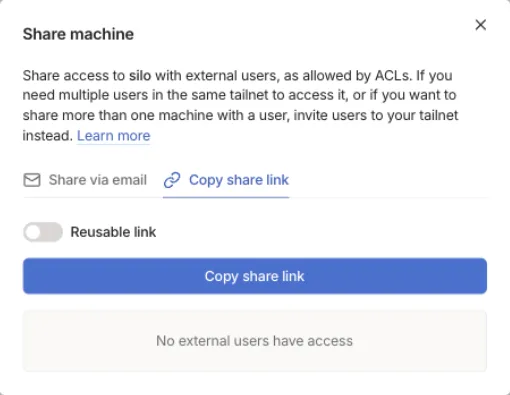
In the Tailscale admin console, open Machines and select Share… next to the Silo machine.
-
Select Share via email and enter their addresses, or select Copy share link and send the link yourself. Turn on Reusable link to send one link to several people.
-
If your tailnet policy doesn’t allow all traffic and you skipped Set roles with grants, add a rule with Source
autogroup:sharedand Destinationtag:siloso people you share with can reach the server. If Who can sign in requires a grant, also expand Application-level options and entersiloserver.org/cap/siloas the App and{"role": "user"}as the Capability. -
Send them the full server address from Admin > Server > Network Access, for example
https://silo.example-tailnet.ts.net. Tailscale reaches a shared machine only by its full name, so their apps won’t find the server on their own and the short name won’t work.
What they do
Section titled “What they do”- Accept the invite, signing in to Tailscale or creating an account. Tailscale requires them to be the admin of their own tailnet, which they are if they created their own account.
- Install the Tailscale app on each device they’ll watch on, including the TV, and sign in with that same account.
- Open Silo, enter the server address, and select Continue as.
Every device signed in to the same Tailscale account signs in to the same Silo account.
Connect Tailscale to an existing account
Section titled “Connect Tailscale to an existing account”If someone already has a Silo account, connect it to Tailscale before they press Continue as. Otherwise Silo creates a second account for them, or refuses with “An account with your email already exists.”
- On a device connected to Tailscale, open Silo at the server’s Tailscale address and sign in with the account’s password.
- In the web app, open Settings > Account and find the Sign-in section. In the mobile app, open Settings and go to Sign-in.
- Select Connect Tailscale, enter the Silo password, and select Connect.
The account keeps its Silo password, so while Allow password sign-in is on the person can still sign in from outside Tailscale and in Jellyfin-compatible apps. While Tailscale doesn’t allow them, the password stops working too. See Remove someone’s access.
Who Silo signs in
Section titled “Who Silo signs in”Silo signs in whoever is signed in to Tailscale on the device, with that person’s role.
- On a shared TV, everyone signs in as the person who signed the TV in to Tailscale. Sign shared TVs in as someone who isn’t a Silo admin, and use profiles to keep each viewer’s watching separate.
- A device that passes other people’s traffic to Silo, such as a reverse proxy or Docker host, makes everyone behind it look like its owner. Tag these devices in Tailscale, because tagged devices can’t sign in this way. Don’t tag the phones, tablets, and TVs people watch on.
- If a subnet router rewrites LAN traffic to its own Tailscale address, set the plugin’s Subnet routers to Cannot sign in.
Remove someone’s access
Section titled “Remove someone’s access”Revoke their share, or remove them from your tailnet, in the Tailscale admin
console. Their devices can no longer reach the server. At its next access
check, every 12 hours by default, Silo signs them out everywhere and stops
accepting their Silo password, including at a public address and in
Jellyfin-compatible apps. To change how often, set
auth.provider_recheck_interval with PUT /api/v2/admin/settings/{key} in
the admin API; the web
app has no control for it. If Who can sign in requires a grant, you can
remove their grant instead.
If you add them back, their password works again after the next check, or as soon as they sign in with Continue as. Admin accounts marked Break-glass account, including the server owner by default, always keep their password. To let someone keep signing in with only their password, open their name in Admin > Users, choose the Sign-in tab, and Unlink Tailscale.
If you turn off Sign in with Tailscale, people whose accounts have no Silo password can’t sign in until you turn it back on or set a password for them.
Limits
Section titled “Limits”- Jellyfin-compatible and Audiobookshelf apps can’t use Tailscale sign-in. Accounts that Tailscale sign-in creates start without a Silo password. For someone who needs those apps, an administrator can set one while Allow password sign-in is on, and the account keeps signing in with Tailscale too.
- Tailscale sign-in doesn’t replace passwords. Turning off Allow password sign-in still requires an OpenID Connect or LDAP provider.
If Continue as doesn’t appear
Section titled “If Continue as doesn’t appear”Continue as appears only when all of these are true:
- The device’s Tailscale app is connected and signed in to an account that can reach the server.
- Silo is open at the server’s Tailscale address, not a LAN or public address.
- Sign in with Tailscale is on.
- The device isn’t tagged.
- If Who can sign in requires a grant, the person has one.
If the button is there but sign-in fails, the message says why:
| Message | What it means |
|---|---|
| Open this server at its Tailscale address to sign in this way. | The device reached Silo another way. Use the address from Admin > Server > Network Access. |
| Tailscale doesn’t allow this device … | The device is tagged or left out by your tailnet policy, or your OpenID Connect or LDAP provider refused the account. |
| You don’t have an account on this server yet. | Create accounts on first sign-in is off and the account isn’t connected to Tailscale. Connect it or turn the setting on. |
| An account with your email already exists. | The person already has an account. Sign in with the password and connect the account. |
For plugin problems, use the plugin’s GitHub issues.